
• Skip to content
  • Skip to primary sidebar

Header Right

  • Home
  • About
  • Contact

QuickBooks

Tired of Typing? Use Recurring Transactions In QuickBooks Online

October 7, 2025 by admin

Asian businesswoman wearing a suit working on a laptop at the office, appearing stressed and worried. The image conveys concepts of business challenges, stress, and concentrationQuickBooks Online is good at saving you time and keystrokes. Here’s another way it helps avoid duplicate data entry.

Accounting is a repetitive process. As you prepare invoices and receipts and bills, and other sales and purchase forms, you undoubtedly grow weary of typing the same information over and over. Customer and vendor names, addresses, product and service descriptions – you practically memorize these details if you have to enter them frequently.

QuickBooks Online does that memorization for you. Once you’ve entered a detail like a customer’s shipping address or the cost of an item, you never have to supply it again. You only have to select data from lists when you’re creating a purchase order, for example.

But the site goes further. If you have to enter transactions on a regular basis that are identical or nearly identical, QuickBooks Online allows you to save them as recurring templates. When it’s time for them to go out, it gives you options for dispatching them depending on the need for any tweaking. Here’s how it works.

How Do You Make Transactions Recur?

The process is very simple. You start by creating a transaction that you’d like to repeat at intervals you specify. For example, you might send monthly invoices to some customers for lawn services. Enter the invoice details like you normally would, selecting a customer and the item or service descriptions and any other information that needs to be included.

When you’re done, click the Manage icon in the upper right, scroll down in the panel that opens on the right, and click Scheduling, then toggle on the button next to Make invoice recurring. In the Template name field, give it a descriptive name that you’ll associate with the invoice. Then click the down arrow in the field under Type.

QuickBooks Online gives you three options for managing your recurring transactions.

There are three ways you can ensure that the invoice goes out at its specified interval. They are:

● Scheduled. If you select this, your transaction will go out as scheduled with no intervention from you. Only the date will change. We urge caution with this one. Be sure you won’t want to change anything.
● Reminder. QuickBooks Online will send you a reminder ahead of the scheduled date. You can specify how many days ahead you should receive it. Then it’s up to you to make any necessary changes and send it out.
● Unscheduled. QuickBooks Online will do nothing except save your template. You can modify and use this at any time that’s appropriate.

Deal with the other Template options and scroll down to set up intervals and starting/ending dates if necessary. If you choose Unscheduled, you can save the template. For Reminder and Scheduled, though, be sure to complete the fields at the bottom of the pane before saving.

If you’re creating a Scheduled or Reminder invoice template, you’ll need to complete the fields at the bottom of the Recurring settings pane.

NOTE: These instructions are based on QuickBooks Online’s new invoice format. It’s possible that your account is still using the old format. If that’s the case, or if you’re creating another type of transaction that will recur (like a bill) you will see a link at the bottom of the form that says Make recurring. Your other options will remain the same.

How Do You Use Recurring Transactions?

When you want to modify or use a recurring transaction, click the gear icon in the upper right of the page and select Recurring transactions under Lists. A table containing all of the ones you’ve created will open. There are multiple columns in this table that provide a lot of information about each transaction. They are Template Name, Type, Txn (Transaction) Type, Interval, Previous Date, Next Date, Customer/Vendor, and Amount.

● The final column, Action, lists the options you have for each type of recurring transaction. For Unscheduled Invoices, you’ll most likely Use them, though you can also Edit them. If you set up a transaction as a Reminder, you can do the following to it:
● Edit (edit the template, not the transaction)
● Use (opens the original transaction that you can edit, save, and send)
● Duplicate (duplicate the template)
● Pause (stop sending reminders temporarily)
● Skip next date
● Delete

Your time as a business owner is valuable. Don’t waste any of it doing duplicate data entry. Creating recurring transactions in QuickBooks Online is one way of minimizing keystrokes and using the time savings to manage other elements of your business. If you have any questions about what we discussed here or are struggling with any other features in QuickBooks Online, don’t hesitate to contact us to schedule an appointment.
Filed Under: QuickBooks

3 Ways to Receive Payments in QuickBooks Online

August 16, 2025 by admin

Subscription Billing on Laptop, Automate Recurring Payments for Business Success, Vector Flat IllustrationOne of the biggest challenges small businesses face is managing a steady cash flow. Keeping income ahead of expenses is a constant balancing act. QuickBooks Online can help. With easy-to-use forms and a convenient mobile app, it helps you track and deposit incoming payments with ease.

Do you ever receive instant payments for certain products or services? Ever need to record a sale on the go—both for your records and your customer’s? Or maybe you send out invoices and want to ensure payments are accurately logged once they come in. QuickBooks Online has you covered in all these scenarios. Plus, it offers automation tools that speed up the payment process—so you can get paid faster and focus on growing your business.

Let Customers Pay Online

If your business sends invoices for products or services, QuickBooks Online makes it easy to record customer payments. While you can manually enter payments, there’s a faster, more efficient option: QuickBooks Payments. This built-in merchant service lets you accept credit card and bank payments electronically—helping you get paid quicker and streamlining your cash flow.

Once QuickBooks Payments is set up in QuickBooks Online (contact us if you need help), your invoices will include integrated payment options for credit cards and electronic checks. Each invoice will feature a payment button, allowing customers to easily enter their payment information. You’ll be able to track when an invoice is viewed, paid, and deposited. Simply open your list of invoices and click on one to view its details. A timeline panel will slide out from the right side, showing the invoice’s history and status. Plus, you can opt to receive notifications for invoice activity.

If you prefer to record payments manually, find the unpaid invoice in your list and click the Receive Payment link at the end of the row. This opens the Receive Payment screen, where you can fill in any missing details and save. You can also find the same link on the invoice screen itself or from the Invoices page (SalesInvoices).

You can receive payments manually in QuickBooks Online from an invoice itself or from the Invoices page.

There’s no cost for setting up a pay-as-you-go account in QuickBooks Payments. There are only per-transaction fees:

●     ACH bank payments are 1%.

●     It’s 3.5% if the payment comes in through an invoice (Apple Pay, Google Pay, credit cards, etc.) or if the payments are keyed in.

●     If you swipe a card, you’ll pay 2.4%

There’s also a $0.30 fee per transaction. Transaction fees are slightly lower if you pay $20 per month. Payments that come in before 3 p.m. PT should be in your account the next business day.

Accepting Payments Through GoPayment

To take payments while you’re on the road, you’ll need a free mobile card reader from Intuit that connects to your smartphone. It supports tap, chip, and digital wallet payments. You can also manually enter card details (see above rates). To process transactions, you’ll need to download the GoPayment app, available for iOS and Android. The app lets you add product names, prices, and images to make checkout faster and easier. Multiple layers of security are in place to help protect your data during mobile transactions.

Receiving Instant Payments

Sometimes, you’ll receive payment right after delivering a product or service. In these cases, QuickBooks Online allows you to create and provide a sales receipt on the spot. Just click +New in the upper left corner, then select Sales Receipt in the Customers section. The form that opens will look similar to an invoice or estimate. Choose the customer in the upper left corner, and fill out the remaining details as you normally would. When you’re finished, click Save and send to email the receipt. You’ll have the option to preview it before sending and to print it.

The Undeposited Funds Account

The Undeposited Funds account in the QuickBooks Online Chart of Accounts

If your customer paid you on the spot with a credit card, that payment would be processed in your QuickBooks Payments merchant center. But what about a physical check? QuickBooks Online defaults to the Undeposited Funds account for sales transactions. You can change this, but we don’t recommend it. This account temporarily holds payments—typically cash and checks—that haven’t yet been deposited into your bank.

It’s a good idea to review this account regularly to ensure you’re not leaving funds languishing. Hover your mouse over the Transactions link in the toolbar and click Chart of Accounts. Scroll down until you find it, as pictured above. To combine the transactions in the Undeposited Funds account to make a bank deposit, click +New in the upper left corner and then click Bank deposit under Other. Make sure the Account in the upper left corner is set to the account where you want to deposit the funds. Click the box in front of each check you want to deposit (or Select all), then Save.

To see your deposit information, click Reports in the toolbar, then  click Deposit Detail under Sales and Customers. You’ll have to list the deposits individually on your physical deposit slip. Make sure that the slip matches what you see in QuickBooks Online.

If you need help or have questions, feel free to contact us to schedule a consultation. While the process of receiving payments isn’t overly complicated, it’s essential to ensure every payment is recorded accurately and deposited correctly into your bank accounts.

Filed Under: QuickBooks

How to Set Up a Bookkeeping Cycle in QuickBooks Online

March 10, 2025 by admin

Young female financier with calculator working inside office at workplace, businesswoman behind paper work satisfied smiling, good achievement results, working with contract, accounts and charts.Do you have a regular schedule you follow with your QuickBooks Online work? It can be a good strategy.

Bookkeeping is cyclical. You tend to do the same things over and over, which may get to be a bit of a drag for you. QuickBooks Online can automate some processes, and it certainly helps minimize duplicate data entry, but you’ll undoubtedly find yourself growing weary of repetitive tasks.

We can’t help you avoid this drudgery completely, but we’d like to suggest a new, more organized way to attack your accounting tasks in 2025. It could be especially helpful if you’re a new QuickBooks Online user and don’t have a routine established yet. But even long-time users might find this routine helpful. It can keep things from slipping through the cracks and simply make you more productive and confident that you’re addressing all of your accounting issues.

Give it a try and see what you think.

What Should You Do Every Day?

Even if you don’t have expenses to enter or invoices to process, it’s a good idea to log into QuickBooks Online every day. If you’ve connected your online bank and credit cards to the site (which you absolutely should), there will probably be transactions to go over. So after you’ve taken a look at your Dashboard (especially your Tasks), hover your mouse over Transactions in the toolbar and click Bank transactions.

Click Update in the upper right to make sure you’re seeing the most recent transactions. If you’re doing this every day, it shouldn’t take long to go over the income and expenses that have been imported since you last logged in.

You should be looking at newly imported transactions daily and completing the fields provided as comprehensively as possible.

If you don’t know what Match or Record as transfer mean, we should schedule a session to go over transaction management in QuickBooks Online.

Every Week

You need to be monitoring your accounts receivable and payables on a weekly basis – at minimum. There are two ways to do this. You can:

Run reports.

• Click Reports in the toolbar and scroll down first to Who owes you. Run Accounts receivable aging summary. QuickBooks will display past-due transactions in several columns (Current, 1-30 days, 31-60 days, 61-90 days, and 91 and over). If you’re keeping up with your receivables, you shouldn’t be seeing numbers in most of the columns, unless you’re in a known collections process.

• Scroll down to What you owe and run Accounts payable aging summary. This works like the aging receivables report. Again, you shouldn’t be seeing much activity here unless you’re in a payment dispute with a vendor.

• You can also run the Open Invoices report to quickly see the Due date and Open balance entries here. Ditto the Unpaid Bills report.

Consult the All sales page.

Hover your mouse over Sales in the toolbar and click All sales. The colored bars and numbers at the top of the page show you the status of your sales. Click the orange bar in the middle to see a list of overdue invoices. If there are any, you can set a Send reminder by clicking the corresponding down arrow in the Action column. While you’re there, look at estimates and unbilled income and take any action needed.

Every Two Weeks (or more often, depending on product volume)

If you sell products and track inventory in QuickBooks Online, you should keep a close eye on your stock to see if you need to:

• Reorder,

• Bring in a larger supply because something is selling well, or,

• Discount or discontinue a product because it’s not selling.

Click Reports in the toolbar and run Product/Service List under Sales and customers and look at the Quantity on hand column.

Every Month

Reconcile your accounts (Transactions | Reconcile).

It’s really, really important that you reconcile your accounts every month. We can help you with this.

No one likes to do this, but it’s way easier to do regular reconciliations than it is to have to go back several months to track down a problem. If you’ve never done this in QuickBooks Online, it works similarly to how you used to reconcile your accounts by comparing a bank statement and your paper checkbook register. Only you’re comparing your bank or credit card statements to your accounts in QuickBooks Online. Before you start, make sure you’ve matched and categorized all of your downloaded transactions.

Run a Profit and Loss report for the last month.

Click Reports in the toolbar and click Profit and Loss under Business overview. Did you make a profit last month?

Every Quarter

If you’re planning to apply for a loan or looking for an investor, or if you just want a deeper understanding of how your business is doing, consider having us create and analyze standard financial reports for you, like the Balance Sheet and Statement of Cash Flows. You can run these yourself in QuickBooks Online, but it really takes an accountant’s eye to understand and interpret them.

If you decide that you want to work with us in any capacity, like helping you with reconciliation and/or modifying your Chart of Accounts, there’s another way we can help. If you ever have trouble categorizing an expense, select Uncategorized Expenses as the Category. If we’re meeting with you once a month, we can run a report on these and help you categorize them correctly.

Filed Under: QuickBooks

Bundling Items in QuickBooks? Build Assemblies

March 20, 2022 by admin

If you regularly sell the same groups of products, you can save time by creating assemblies.

Some things just naturally go together. If you manage a fast-food restaurant, for example, you probably sell similar combinations frequently, like a double cheeseburger, fries, and a soft drink. If you run a car dealership, there are numerous ways to upsell your customers by adding accessories, maybe at a discount. Even very small businesses can bundle items. You might sell handmade jewelry and want to put together a package that includes cleaner and cleaning cloths for one price.

You can, of course, continue to sell all of those products separately. But you may find you can bump up your sales (and profits) by creating assemblies (sometimes called “kits”), bundles of items that are sold as one unit. You can build these automatically if you’re using QuickBooks Desktop Premier or above. Here’s how.

Putting Items Together

If you’re already creating item records and recording product sales in QuickBooks, you probably already have Inventory turned on. If you don’t, open the Edit menu and select Preferences. Click Items & Inventory, then Company Preferences. Make sure the boxes are checked for the options you want.

Haven’t started creating item records yet? We can help with that if you have questions about how QuickBooks handles this. In fact, we encourage you to contact us about this critical process, because some of the records’ fields may be foreign to you. If you want to try it on your own, open the Lists menu and select Item Lists. Click the down arrow next to Item in the lower left corner and then click New. The New Item window will open.

Since you’re going to be building assemblies, you have to create records for all of the products that will be included. So choose the Inventory Part option under Type. Complete the rest of the fields here and click OK.

Once you have enough product records created to start building assemblies, go through the same steps you went through to open the New Item window. Rather than selecting Inventory Part under Type, though, click on Inventory Assembly. Instead of defining a single item in this window, you’ll be choosing the components that will be included. This is your Bill of Materials.

You won’t have to complete every field in this window, but several are required. Give your assembly its own Item Name/Number. Then, so you know what you’ll be pricing, jump down to the Bill of Materials window and select the items that your assembly will include in the table provided. If you completed all of the fields in the product records, QuickBooks will fill in the other columns on each line except for quantity (QTY), which you must enter.

When you’ve completed the table for your assembly, enter the Total Bill of Materials Cost in the Cost field above it, then supply the Sales Price that you will charge. Select the correct Tax Code and Income Account. Then go down to the bottom of the screen under Inventory Information and select the appropriate Asset Account. You’ll also need to specify at what point new assemblies should be built (minimum and maximum). There are four other fields on this line that QuickBooks will fill out once you start building assemblies and selling them.

Building Assemblies

The hard work is over now. When you want to actually start building assemblies, open the Vendors menu and click Inventory Activities | Build Assemblies. Select the kit you want by opening the drop-down menu next to Assembly Item. The items you selected will appear in the table below. QuickBooks will also display the maximum number of kits you can build given the quantity of inventory on hand. Enter the number you want in the Quantity To Build field and click the Build & Close button.

Now, when you go back to your item record, you’ll see that QuickBooks has filled in the On Hand number to reflect the assemblies you just built.

The process of building assemblies may feel a little foreign at first. And if you’re going to keep some on hand, you’ll need to pay extra attention to your inventory levels, which you can do by running the Inventory Stock Status by Item report. So, this is an area where you may need to consult with us. We’re available to go over inventory and assembly concepts with you, or any other element of QuickBooks.

Filed Under: QuickBooks

The Life of an Estimate in QuickBooks Online

October 20, 2021 by admin

Estimates—or quotes, or bids—are useful tools when you’re pitching a sale of products or services. Here’s how QuickBooks Online handles them.
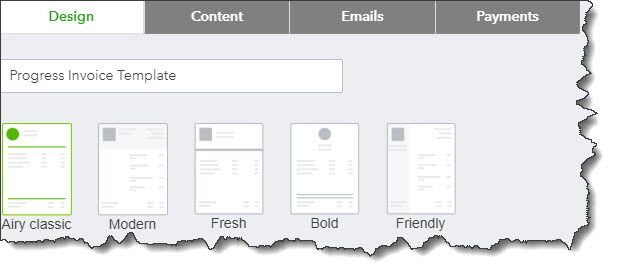
Sales estimates are standard procedure in many professions. You wouldn’t authorize a car repair without one. Nor would you OK a remodeling job on your kitchen or a summer’s worth of yard landscaping without knowing what the costs will be upfront.

Estimates don’t have to be formal documents. You could scribble a proposal for products or services and their prices on a paper napkin and have your customer sign it. But as we’ve said before, the quality of your sales documents reflects on your company’s professionalism as well as its image.

QuickBooks Online offers specialized tools to manage this step in the selling process. You can create detailed estimates that the site can easily convert to invoices when you get an approval. And QuickBooks Online reports help you monitor the progress of your quotes. Here’s how it works.

A Dedicated Form

You probably already know how to create an invoice. If so, you shouldn’t have any trouble generating estimates because the forms are very similar. To get started, click the + (plus) sign in the upper right corner of the screen. In the Customers column, click Estimates. A form like this will open:


QuickBooks Online provides a form template for your estimates.

Open the drop-down list in the Customer field and select the correct one (or +Add new).

Note: If you click on +Add new, you’re only required to enter your prospective customer’s name to create an estimate; contact detail, of course, will not appear on the form. You can go back later and complete a customer record, but it’s best to at least enter a physical and email address. Click +Details to open the complete record, then save what you provide there.

The word “Pending” should appear below the Customer field. This refers to the status of your estimate. Click the down arrow to the right of it, then on the down arrow in the small window that opens to see what options you’ll have later. If you want to copy someone else on the estimate, click the small Cc/Bcc link to the right and provide the email address(es).

Enter (or select by clicking on the calendar graphic) the Estimate date. If your offer is only good for a limited period of time, enter an Expiration date; otherwise, leave that field blank. Then go down to the Product/Service grid and select the items for which you’re providing an estimate, one on each line. Fill in the Qty field and check the labeled box if the item is taxable.

If you had created a product record for it already, the other fields should be completed automatically. If not, click +Add new. The Product/Service information pane should slide out from the right side of the screen. Here again, you’re only required to enter a Name, but you should really create the whole record and save it to return to the estimate. If you’ve not been through this process before, we can walk you through it.

You can add a discount to the estimate as either a percentage or a dollar amount in the lower right corner of the screen. You can also edit the customer message that appears in the lower left and attach any files necessary. When you’re done, save the estimate.

Estimate Options


You can work with your estimate from the Sales Transactions screen.

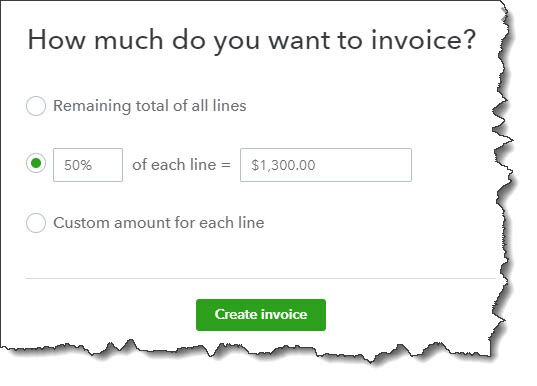
If you’re not already there, click the Sales link in the left vertical toolbar, and then the All Sales tab and the Estimates bar. Find your estimate and look at the end of the row, in the Action column. If you want to convert your estimate to an invoice, click Create invoice. In the window that opens, indicate whether you want to invoice:

  • A percentage of each line item,
  • A custom amount for each line, or,
  • The total of all lines.

Look over your invoice when it opens, complete any other fields necessary, and save it. Your estimate’s status has now been changed to Closed, and the new invoice created from it will appear on the Sales Transactions screen. It will also be included in the Estimates By Customer report.

If you can create an invoice, you can create an estimate. The tricky part comes in when you have to amend an estimate before you bill it – or even alter it and resubmit it. If you’re going to be working with estimates extensively, let us help you get it right from the start.

Filed Under: QuickBooks

The Top 5 Ways Businesses Get in Trouble With the IRS

May 20, 2021 by admin

Nitya LLCAs a small business owner, you probably know that willfully avoiding paying taxes will lead to severe problems with the IRS; however, IRS problems aren’t always a result of a business owner’s intentional actions. These are five ways business owners can get into trouble with the IRS that they might overlook or not realize.

1. Under-Reporting Income

All business income must be reported to the IRS. Even if you are a freelancer, receive contract payments, or are paid in cash, you must let the IRS know or risk hefty fines and penalties on top of the tax you owe on that income. Some individual self-employed people fail to pay taxes – either due to lack of knowledge about tax laws or evasion – and do not realize they are responsible for up to six years of back tax returns. Take note that if you do need to file back tax returns, many deductions are not claimable on more than the most recent three returns. Additional years, up to six, must be filed; however, the benefit of deductions is lost beyond three years.

2. Over-Reporting Expenses

Keep business expenses separate, preferably paid from a separate account and with a separate credit card, so that your expenses do not get mixed in with those for your business. The most common over-reported expenses are private travel being claimed and business travel and private miles driven and claimed as business miles. If you’re not sure what qualifies as an actual business expense, consult with your tax preparer or accountant. For a business expense to be deductible, it must be ordinary and necessary. An “ordinary” expense is common and accepted in your business; a “necessary” expense is helpful and appropriate for your business. Expenses like the cost of goods sold (for manufacturing businesses) and capital expenses (costs that are part of your investment in your business) are figured separately from business expenses.

3. Failing to Report “Trust Fund Taxes”

As an employer, you must withhold taxes from employee earnings. Those taxes are not paid to employees as wages and are held “in trust” until paid to the U.S. Treasury. Thus, the name “trust fund taxes.” These are income tax, Social Security, and Medicare taxes (aka “withholdings”). Sales tax is also considered a “trust fund” tax since it is collected from someone else like a customer or client and held until paid to the Treasury. These taxes must be paid and reported to the proper taxing authority and cannot be used for operating or financing a business. If they are, and they are not reported, it is considered tax fraud.

4. Forgetting the Self-Employment Tax

Just like an employer must withhold Social Security and Medicare taxes from employees, if you are self-employed, you must pay self-employment (SE) tax, consisting of Social Security and Medicare taxes, to the Treasury. The SE tax is 15.3 percent (12.4 percent for social security (old-age, survivors, and disability insurance) and 2.9 percent for Medicare (hospital insurance) of net self-employment income in addition to income taxes. That means it is calculated after expenses are deducted. Note that SE tax does not include any other taxes that self-employed individuals may be required to file, so these individuals must consult their tax preparer or accountant to be sure they are paying all the required taxes. Also, self-employed individuals can deduct the employer-equivalent portion of the SE tax when calculating their adjusted gross income (AGI). Also, keep in mind that the tax is paid only on net self-employment earnings, that is, income after expenses are deducted.

5. Not Paying Estimated Quarterly Taxes

As a small business owner, you do not have taxes withheld from a formal paycheck as wage-earning employees do. However, that does not mean there are no taxes due to the IRS. If a small business owner anticipates a tax liability of $1,000 or more, they must send estimated quarterly tax payments to the IRS. Not doing so can lead to a whopping end-of-year tax bill with penalties, too.


Again, as mentioned above, consult your tax preparer or trusted accountant to help you make sure you stay in the clear with the IRS.

Start planning your tax strategy today by calling 301-728-0808 now or request your free consultation online and we’ll contact you to discuss how we can reduce your tax burden.

Filed Under: QuickBooks

  • Page 1
  • Page 2
  • Next Page »

Primary Sidebar

Search

Archives

  • February 2026
  • January 2026
  • December 2025
  • November 2025
  • October 2025
  • September 2025
  • August 2025
  • July 2025
  • June 2025
  • May 2025
  • April 2025
  • March 2025
  • February 2025
  • January 2025
  • December 2024
  • November 2024
  • October 2024
  • September 2024
  • August 2024
  • July 2024
  • June 2024
  • May 2024
  • April 2024
  • March 2024
  • February 2024
  • January 2024
  • December 2023
  • November 2023
  • October 2023
  • September 2023
  • August 2023
  • July 2023
  • June 2023
  • May 2023
  • April 2023
  • March 2023
  • February 2023
  • January 2023
  • December 2022
  • November 2022
  • October 2022
  • September 2022
  • August 2022
  • July 2022
  • June 2022
  • May 2022
  • April 2022
  • March 2022
  • February 2022
  • January 2022
  • December 2021
  • November 2021
  • October 2021
  • September 2021
  • August 2021
  • July 2021
  • June 2021
  • May 2021
  • April 2021
  • March 2021
  • February 2021
  • January 2021
  • December 2020
  • November 2020
  • October 2020
  • September 2020
  • August 2020
  • July 2020
  • June 2020
  • May 2020
  • April 2020
  • March 2020
  • February 2020
  • January 2020
  • December 2019
  • November 2019
  • October 2019
  • September 2019
  • August 2019
  • July 2019
  • June 2019
  • May 2019
  • April 2019
  • March 2019

Categories

  • Business Best Practices
  • Business Tax
  • Estate and Trusts
  • Individual Tax
  • Investment
  • Personal Tax
  • QuickBooks
  • Real Estate
  • Retirement
  • Uncategorized

Copyright © 2021 · https://www.nityacpa.com/blog